





Network performance recording
Contents
Session replay allows you to capture network requests and responses, providing insights into network performance and potential issues. This feature can be particularly useful for debugging and optimizing your application's network interactions.
PostHog can capture network requests that occur during the browser session, so you can see if your application is sending the expected requests and response, and check the effect of slow network requests or errors on the user experience.
You can enable network recording from your project settings:
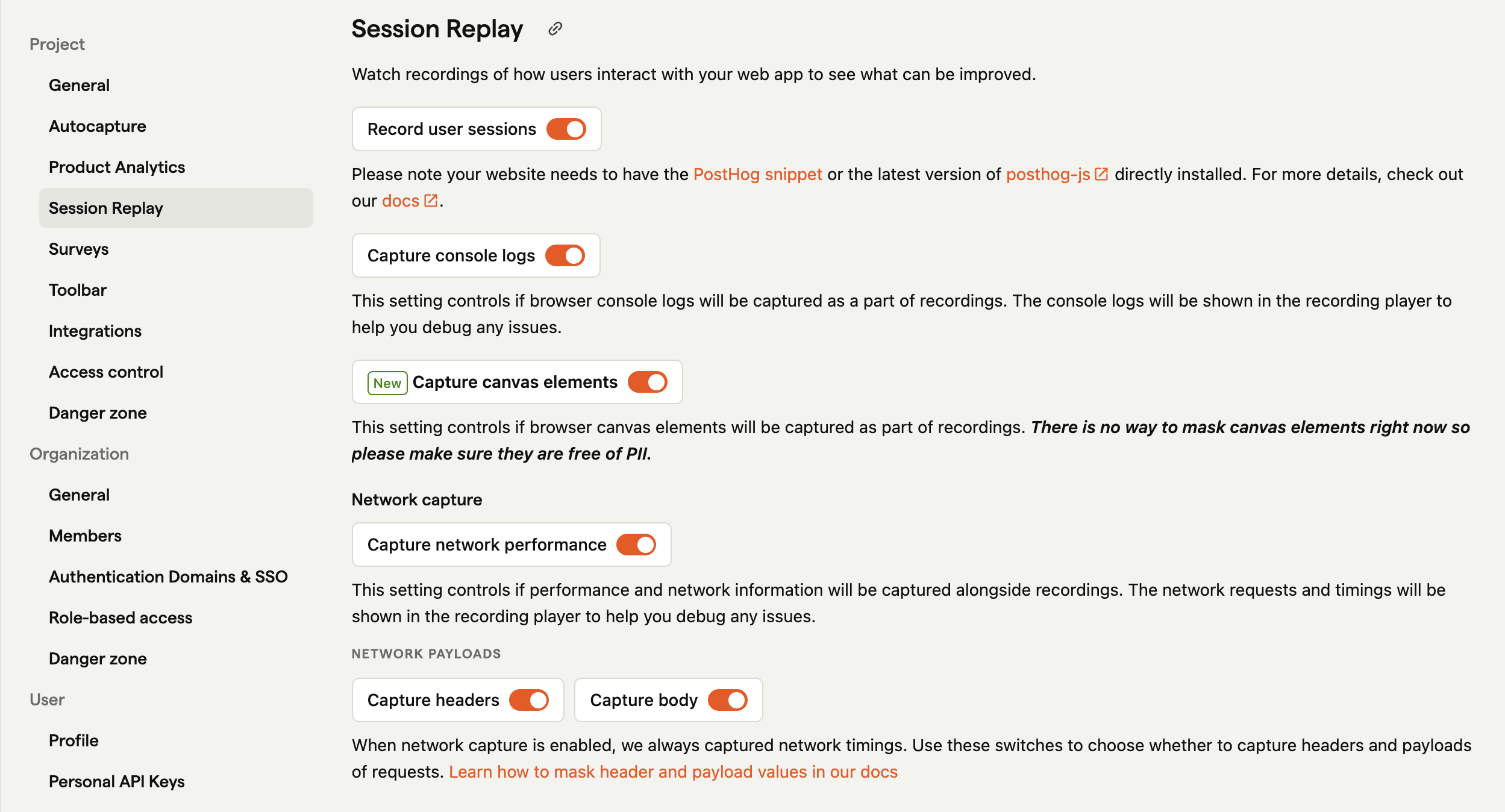
When enabled PostHog always captures:
- the network request URL,
- performance information about the request,
When request capture is enabled you can also enabled payload and body capture, this includes:
- the request method
- the response code
- request & response headers (if enabled)
- request & response body (if enabled)
Request and response body and header capture are off by default. You can enable them through your project settings or SDK configuration.
Sensitive information
We automatically scrub some sensitive information from network headers and payloads, but if your request or response payloads could contain sensitive data, you should provide a function to mask the captured data when you initialize PostHog.
We have a deny-list of headers that we will never capture (even if you provide a masking function).
- authorization
- x-forwarded-for
- cookie
- set-cookie
- x-api-key
- x-real-ip
- remote-addr
- forwarded
- proxy-authorization
- x-csrf-token
- x-csrftoken
- x-xsrf-token
And we redact bodies if we believe they contain
- credit card numbers
- social security numbers
- password
- secret
- passwd
- api_key
- apikey
- auth
- credentials
- mysql_pwd
- privatekey
- private_key
- token
Note: If you provide a masking function to alter redaction of payloads it entirely replaces PostHog's automatic payload redaction.
How to register a callback to inspect and redact each network request
Note: This callback also runs against the page URL captured in the session snapshot (the URL shown in the replay player), not only network request URLs. See URL redaction in the privacy docs.
Filter captured output by URL
To keep only requests to an exact URL, use an allowlist:
Replace the example URL with one whose captured content you intend to keep. Exact matching excludes other hosts, paths, and query strings. This callback doesn't enable body or header capture. It returns allowed content unchanged, so redact sensitive payloads yourself, as described above.
The callback filters output after collection. Returning null or undefined drops an ordinary request, but enabled body and header capture may already have read its data. Removing fields in the callback also doesn't undo those reads. This is not a URL allowlist that prevents collection.
Initial navigation and performance entries (isInitial === true) are an exception. Replay keeps required timing metadata when you drop an initial entry, but removes its URL, headers, and body. The callback also affects replay page URLs, so check the URL redaction guidance before applying an allowlist.
Prevent body and header access
To prevent the replay network plugin from reading request and response bodies and headers, set both options to false at initialization:
Both options are booleans. An explicit local false overrides remote enablement for that option. With both disabled, the replay network plugin doesn't install its fetch and XHR detail-capture wrappers. This applies to every URL, not a selection of URLs.
Disabling only recordBody doesn't prevent all access: header capture can still inspect headers and request-body properties. Disabling only recordHeaders doesn't prevent header inspection needed for body capture.
These options don't disable network timing or URL recording, DOM snapshots, other SDK collection, or all transmission to PostHog. Configure replay privacy controls and consent separately.
Troubleshooting
Recording from localhost
Due to the very high volume of network requests that some tools can make (for example when running hot-reload during development) PostHog does not capture network requests when running on localhost
Requests early in the page lifecycle don't capture all information
PostHog has to wrap fetch and xhr in order to capture network requests. If your application makes network requests before PostHog has had a chance to wrap them, then PostHog will not capture all information about the request.
PostHog truncated the request or response body
In order to maintain service levels we truncate all request and response bodies at 1MB
A network request says it was redacted
We are cautious in what we capture. If you think we're being too cautious you can override the masking function.
I want to query the network performance data I capture
We'd love that too! It's not possible right now but watch this space. You can subscribe for updates in GitHub
To capture network requests in your recordings, add PostHogOkHttpInterceptor to your OkHttp Interceptor.
Note: Only metric-like data like speed, size, and response code are captured. No data is captured from the request or response body.
Add tracing headers
The same interceptor can also add PostHog tracing headers to matching hosts. See the Android tracing headers docs for setup.
In iOS, PostHog uses method swizzling on URLSession methods, which allows for the out-of-the-box collection of network data.
However, URLSession's async/await-powered APIs are not exposed to the objc runtime and cannot be swizzled. As a result, network telemetry cannot be automatically captured.
For apps using async URLSession methods, PostHog provides wrapper functions that you can use to manually capture network logs.
You can find a list of available methods to use manually in the URLSession extension source.
Note: Only metric-like data like speed, size, and response code are captured. No data is captured from the request or response body.
To capture network requests in your recordings, add captureNetworkTelemetry: true to your PostHog Session replay configuration alongside any of your other configuration options:
Note: Capture network requests is only available for iOS.
Note: Only metric-like data like speed, size, and response code are captured. No data is captured from the request or response body.
Performance considerations
Capturing network performance data can have an impact on your application's performance. Be mindful of the amount of data you're capturing and consider implementing sampling or other optimization techniques if you're dealing with high-volume network traffic.